
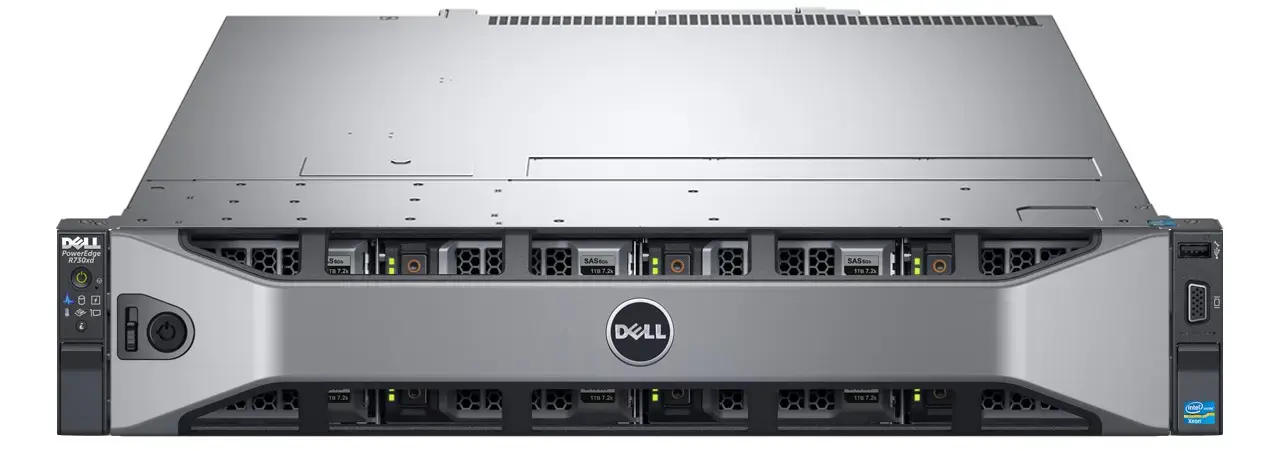
Is your Dell server too loud and sounds like you’re in a room with a jet engine?
This is a small powershell script used to manually control fan speed on a Dell server (such as PowerEdge R730xd) from a Windows computer on the same network as the IPMI. By default, the fan speed control only goes down to 40%, which is often too loud for office or home usage. This program allows you to set any fan speed.
Note: Manually lowering fan speed is not recommended if you’re using this server for high performance.
Install Intelligent Platform Management Interface (IPMI) tool Windows
You can download the latest IMP tool from Dell at: https://www.dell.com/support/home/en-ca/drivers/driversdetails?driverid=m63f3 and ensure that it’s compatible for your server.
PowerShell Script
Save the following code as ipmi-fan-control.ps1 or any other name you like. Run it with powershell. It will prompt you for what speed you want. If it’s a very low power usage server, something like 20 will work fine.
The setting will be saved even after you exit.
# Hardcoded iDRAC credentials
$ip = "123.123.123.123"
$user = "User" # could use root
$pass = "Password"

# Path to ipmitool.exe (adjust if installed elsewhere)
$ipmitool = "C:\ipmitool_1.8.18-dellemc_p001\ipmitool.exe"

# Log file path (same folder as script)
$logFile = Join-Path $PSScriptRoot "ipmi-log.txt"

# Function to trim log file to 500 lines
function Trim-Log {
    if (Test-Path $logFile) {
        $lines = Get-Content $logFile
        if ($lines.Count -gt 500) {
            $lines | Select-Object -Last 500 | Set-Content $logFile
        }
    }
}

# Prompt user for fan speed percentage, default to 40 if blank
$fanPercentInput = Read-Host "Enter desired fan speed percentage (0-100, default 40)"
if ([string]::IsNullOrWhiteSpace($fanPercentInput)) {
    $fanPercent = 40
} elseif ($fanPercentInput -as [int]) {
    $fanPercent = [int]$fanPercentInput
} else {
    Write-Host "Invalid input. Please enter a number between 0 and 100." -ForegroundColor Red
    exit
}

if ($fanPercent -lt 0 -or $fanPercent -gt 100) {
    Write-Host "Percentage must be between 0 and 100." -ForegroundColor Red
    exit
}

# Convert percentage to hex value for IPMI (0–100 decimal → hex byte)
$fanHex = "{0:X2}" -f $fanPercent

# Put fans into manual mode
& $ipmitool -I lanplus -H $ip -U $user -P $pass raw 0x30 0x30 0x01 0x00

# Set fans to chosen PWM
& $ipmitool -I lanplus -H $ip -U $user -P $pass raw 0x30 0x30 0x02 0xff 0x$fanHex

Write-Host "Fans set to $fanPercent% PWM. Monitoring sensors..."
Add-Content $logFile "=== Fan control started at $(Get-Date -Format 'yyyy-MM-dd HH:mm:ss') with $fanPercent% PWM ==="
Trim-Log

while ($true) {
    ##Clear-Host
    $timestamp = Get-Date -Format "yyyy-MM-dd HH:mm:ss"
    Write-Host "=== Monitoring Cycle at ${timestamp} ===`n"

    # Query all SDR sensors once
    $sensorData = & $ipmitool -I lanplus -H $ip -U $user -P $pass sdr

    # Separate temps and fans
    $temps = $sensorData | Where-Object { $_ -match "Temp" }
    $fans  = $sensorData | Where-Object { $_ -match "Fan" }

    Write-Host "=== Temperature Sensors ==="
    $temps | ForEach-Object { Write-Host $_ }

    Write-Host "`n=== Fan Speeds ==="
    $fans | ForEach-Object { Write-Host $_ }

    # Log to file
    Add-Content $logFile "`n=== Cycle at ${timestamp} ==="
    $temps | ForEach-Object { Add-Content $logFile $_ }
    $fans  | ForEach-Object { Add-Content $logFile $_ }
    Trim-Log

    # Extract numeric temperature values from second column
    $cpuHot = $temps | Where-Object { $_ -match "CPU" -or $_ -match "Temp" } | ForEach-Object {
        $parts = $_ -split "\|"
        $value = $parts[1].Trim()
        if ($value -match "([0-9]+)") { [int]$matches[1] }
    } | Where-Object { $_ -gt 50 }

    if ($cpuHot) {
        Write-Host "`n*** ALERT: CPU exceeded 50°C! Restoring auto fan mode... ***" -ForegroundColor Red
        Add-Content $logFile "*** ALERT at ${timestamp}: CPU exceeded 50°C. Restoring auto mode. ***"
        Trim-Log
        & $ipmitool -I lanplus -H $ip -U $user -P $pass raw 0x30 0x30 0x01 0x01
        break
    }

    Start-Sleep -Seconds 2
}
How to fix “running scripts is disabled on this system”?
If you can’t run the ps1 script because of this error, you need to allow your powershell to be able to execute ps1 scripts to begin with.
- Open PowerShell as Administrator
- Run this command in PowerShell
Set-ExecutionPolicy -ExecutionPolicy RemoteSigned3. Enter Y
From now on, your PowerShell should be able to execute scripts made locally all the time.
Leave a Reply